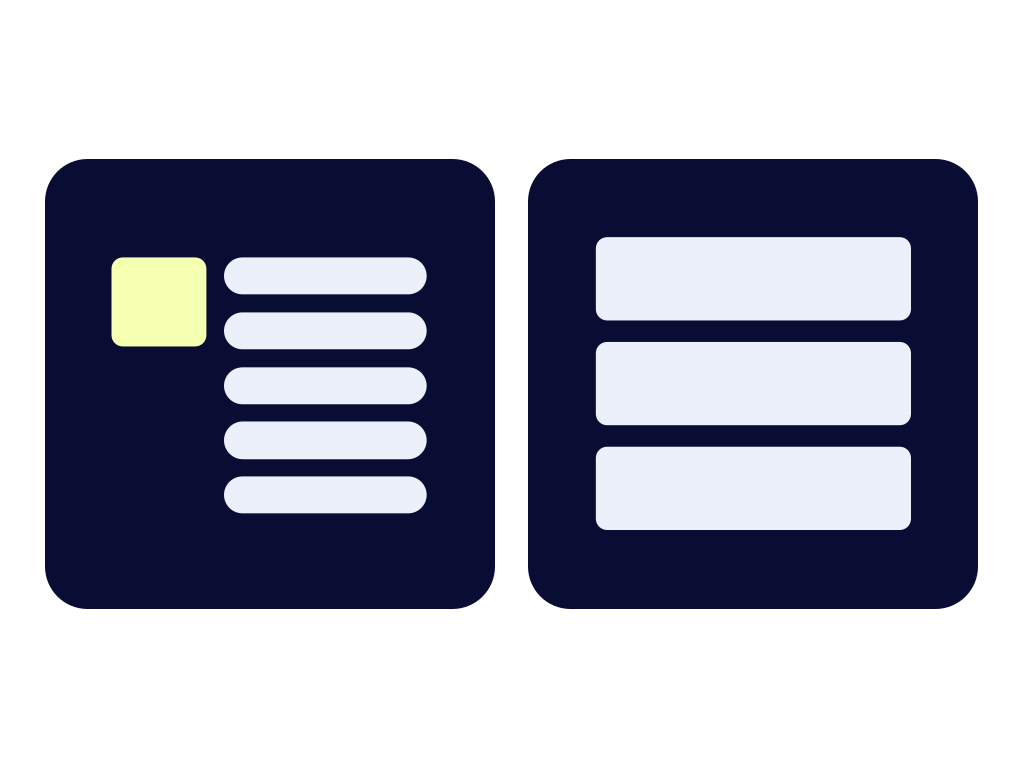
Page types
This one's easy - there's only these two:
- Page: Article
- Page: General
Page: Article is best for deep-dives into a certain topic. For any other task, use General: Page.
If you're unsure, experiment with one of each.The admins can even change the page type later.
Page: Article
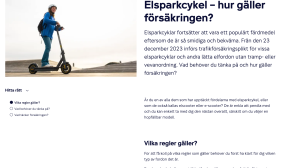
This page type is designed for long reading, such as articles, blog entries and product details.
It supports three parts:
- Header: Blog, for the page title, date and so on
- Article: Text Section, with optional side content
- Article: Images, for 1-2 photos, illustrations or screenshots
Anchor menu
By activating "Show anchor menu" in the left panel, users can jump between the various text sections in the article.
This is great for pages that might not require that the users reads from top to bottom, but is looking for specific piece of information, such as product details or guides.
Page: General
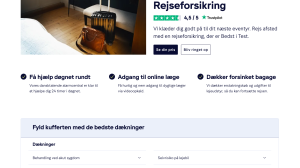
The general page is used for everything that's not very text heavy.
It supports all parts except for the three article parts.
Anchors
While the General Page does not offer any anchor menu, you may create anchor links to certain parts:
- Product Overview
- Product Group Table
- Notice: Short Text
- Text Sets
- FAQ
- Infographics
- Table
- Contact
- Product Action List
Changing page types
Sometimes, you might want to change ther page type of an existing page without having to start from scatch.
If you're an admin user, you can fix this in the Data Toolbox app:
- From the XP start page, open Data Toolbox and then Data Tree
- Select the "com.enonic.cms.default" repository and then the "Draft" branch
- Select the "[root]" node, the "content" node and then the node with the same name as your site
- Find the page you wish to change, click its "info" icon, and select "Display properties". If you wish to change a subpage, click the pages that precede it in the URL, for instance /bedrift and then /forsikring to display the subpages.
- Click the pencil icon next to "type", and edit the string "theme:page-article" to "theme:page-general" or vice versa
Can't access the Data Toolbox app? Find an admin to help you!